Connect Notion
The first time you enable N2O, the N2O panel opens by itself in the Obsidian sidebar. It has one thing on it until you connect: a Connect to Notion button, with Use an internal integration token underneath it as the alternative. Everything below happens in that panel.
Option A: OAuth (recommended)
Section titled “Option A: OAuth (recommended)”- In the N2O panel, click Connect to Notion.
- The panel switches to Approve in Notion and tells you the browser is about to open. It waits a few seconds first so the tab doesn’t appear out of nowhere. If you change your mind, Cancel and go back is right there.
- Your browser opens Notion’s authorization page. Log in if you need to, pick the pages you want to share, and click Allow access.
- Obsidian comes back to the front and the panel shows Connected, with your workspace name.
Page access is settled on Notion’s own authorization screen, so there is nothing to share by hand afterwards.
If the browser hands you a code instead of returning to Obsidian, the waiting screen has a field for it: Did your browser show a code instead? Paste it here. That happens on Obsidian 1.13 and later, where the browser asks before opening an external application and declining leaves the handoff stranded. Paste the code, click Connect, and you are through.
Option B: Manual token
Section titled “Option B: Manual token”Use this if you want explicit control over what the integration can reach.
Create an integration:
- Go to notion.so/my-integrations.
- Click New integration.
- Give it a name (e.g., “N2O Sync”) and select your workspace.
- Under Capabilities, enable Read content, Update content, and Insert content.
- Click Submit, then copy the token - it starts with
ntn_.
Share pages with the integration:
Your integration can only access pages you explicitly share:
- Open a Notion page or database you want to sync.
- Click the ”…” menu (top-right), then Connections > Connect to, and select your integration.
- Sharing a parent page or database covers all its children - you don’t need to share each page individually.
Enter the token:
In the N2O panel, click Use an internal integration token. Paste the token into the field and click Connect. If you need the steps again while you are standing there, the panel has a How do I get a token? section that spells them out. A rejected token says so on the spot and you stay on the same screen.
Reconnecting later
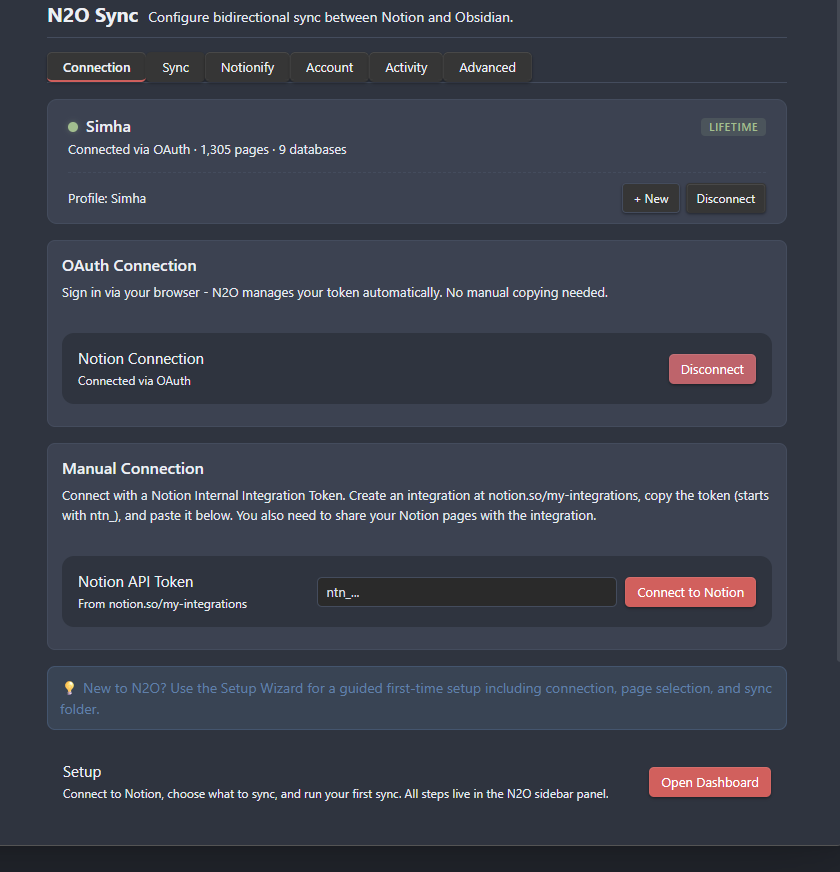
Section titled “Reconnecting later”- Open Obsidian Settings > N2O Sync > Connection. Under OAuth Connection, Disconnect then Connect to Notion re-authorizes; Manual Connection takes a new token; and the Setup row at the bottom has an Open Dashboard button that puts you back in the panel.
- Or open the Command Palette (
Ctrl/Cmd + P) and run N2O Sync: Open N2O panel.
Next Steps
Section titled “Next Steps”Connecting starts your free 14-day trial and lands you on the connected panel. From there, pick what to sync and run your first sync.