First Sync
Once Notion is connected, the N2O panel becomes your control surface. Everything from here happens in it.
Tell N2O what to sync
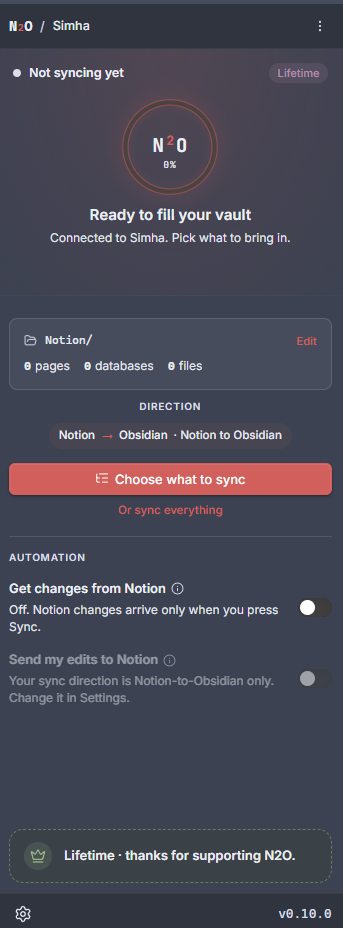
Section titled “Tell N2O what to sync”A freshly connected panel has a SYNCED FOLDERS section reading Nothing is syncing yet. Click it, and pick the Notion pages and databases you want and the vault folder they land in. A synced folder is one pairing of the two, and you can have several.
The same choice lives in two other places, and all three edit the same thing:
- The panel’s … menu has Synced folders… and Pick from Notion….
- Obsidian Settings > N2O Sync > Sync has Pick from Notion, which is either Everything (every page and database your connection can reach) or Selected items with a picker.
Where files land defaults to a Notion/ folder in your vault. Standalone pages go under _Pages/, and each database gets its own folder.
Run your first sync
Section titled “Run your first sync”Any of these starts it:
- The panel - click Sync.
- Ribbon icon - click the N2O icon in the left sidebar (N2O: Sync with Notion (merge)).
- Command Palette - press
Ctrl/Cmd + Pand run N2O Sync: Sync with Notion.
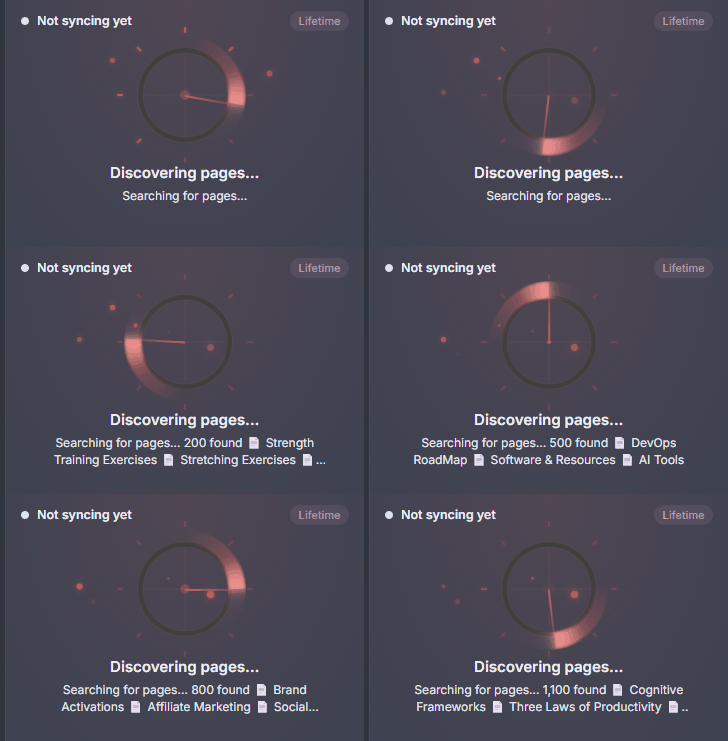
The N2O panel shows sync progress.
What Happens During Sync
Section titled “What Happens During Sync”N2O queries your Notion workspace, discovers all pages and databases in scope, and downloads their content. The first sync fetches everything - large workspaces (hundreds of pages) may take a few minutes due to Notion’s API rate limits. Subsequent syncs are incremental: only changed pages are re-fetched.
After Sync
Section titled “After Sync”Your sync folder will contain one file per Notion page:
Notion/ <- your sync folder├── My Database/ <- one folder per database│ ├── Item One.md│ ├── Item Two.md│ └── _files/ <- media downloaded from database items├── My Database.base <- Bases view (table, cards, list)├── _Pages/ <- standalone pages│ ├── Project Overview.md│ ├── Meeting Notes/│ │ ├── Meeting Notes.md│ │ ├── 2026-01-10.md│ │ └── 2026-01-15.md│ └── _files/Every file includes YAML frontmatter with Notion properties and sync metadata:
---icon: "📋"status: "In Progress"tags:  - frontend  - featurenotion_id: "abc123..."notion_url: "https://notion.so/..."created: 2026-01-15T09:00:00.000Zupdated: 2026-03-01T14:30:00.000Zn2o_type: "database-item"---
# My Project
Page content appears here as Markdown...
Free 14-day trial
Section titled “Free 14-day trial”Connecting Notion starts a free 14-day trial with every feature unlocked: two-way sync, automatic syncing in and out, and custom templates, with unlimited databases and up to 300 pages. No credit card required.
There is no free tier underneath it. Without an active licence N2O is locked rather than reduced.
When the trial ends, keep syncing with Pro ($8/mo, or $80/yr) or Lifetime ($299 one-time). Both remove the page cap. Without an active license, syncing is paused: your already-synced files stay in the vault, but no new sync runs until you upgrade.
Troubleshooting
Section titled “Troubleshooting”“0 items synced” - Nothing may be selected. Open Obsidian Settings > N2O Sync > Sync > Pick from Notion. If it is set to Selected items, click Pick from Notion and confirm things are actually checked in the picker.
Pages missing - With a manual token, the page may not be shared with your integration. See Connect Notion.
Sync seems slow - The first sync fetches everything from scratch. 500+ pages can take several minutes due to Notion’s rate limit. This is expected behavior.
Next Steps
Section titled “Next Steps”- Learn about sync modes - Sync, and automatic syncing in and out.
- See how databases map to folders and frontmatter.
- Explore all settings.