
Notionify
Notionify is N2O’s display layer that makes your synced Obsidian pages look closer to their Notion source. It’s the small details - a long-form date instead of 1992-09-08, an icon next to the row name, the friendship pill that lights up the right colour - that make a synced workspace feel native rather than imported.
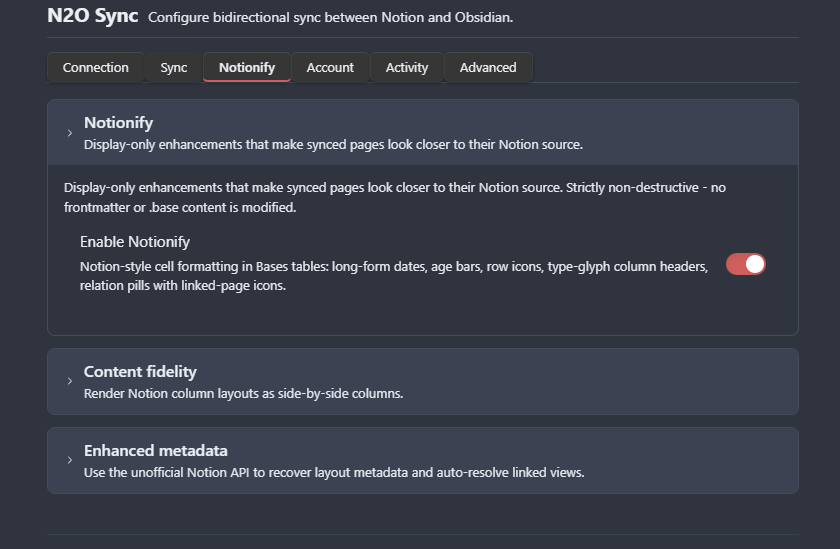
It’s on by default. You can turn it off any time in Settings > N2O > Notionify.
What Notionify does today
Section titled “What Notionify does today”Bases tables
Section titled “Bases tables”When you open a Notion database in Obsidian’s Bases view, Notionify reshapes it to match Notion’s familiar look:
- Type-glyph column headers - instead of bare property keys (
birthday-date,gender,relationship), you see Notion’s recognisable type icons: 📅 Birthday Date, ⊙ Gender, ↗ Relationship, ƒ Age, # Number, ☑ Checkbox, ✉ Email, ☎ Phone. - Long-form dates -
1992-09-08becomesSeptember 8, 1992. Click the cell to edit; the long-form display steps aside automatically while you type. - Age bars - number columns get a thin progress bar scaled to the column’s max value, so glancing at a list of ages feels like reading a Notion page rather than a spreadsheet.
- Row icons - every row carries the page’s frontmatter icon (👤, 📚, 🎓 …) right beside the title, exactly like Notion shows the page glyph next to entity names.
- Relation pills with icons - when a row’s Relationship column says “Friends”, the linked Friends page’s icon (👫) shows up on the pill. Same for Family (👥), Colleagues (💼), Close friends (💗) - whatever icon you set on those pages flows through.
Long-form content
Section titled “Long-form content”Notionify also polishes the prose:
- Wikilink icons - every internal link in a synced page’s body picks up the linked page’s frontmatter icon (📚, 👤, 📔 …) and shows it right before the link text, just like Notion’s inline page references.
- Notion-style links - wikilinks render in your text colour with a subtle thin underline that brightens on hover, instead of Obsidian’s accent colour.
- Tighter line rhythm - paragraph spacing matches Notion’s denser layout; empty lines from N2O metadata comments collapse so they don’t blow up the gap between blocks.
- Code-block copy buttons - every code block grows a
Copybutton in the top-right corner. Hover the block to see it, click to copy, watch it briefly flip toCopiedbefore settling back. Works in any markdown view. - Heading anchors on hover - every heading shows a subtle
#to its left when you hover over it, like Notion’s anchor indicator. Click behaviour stays Obsidian’s default. - Quote blocks - plain
>quotes use a thicker left border in your text colour, no italic, no muting. Quieter than Obsidian’s default callout chrome but more emphatic than a standard blockquote.
Multi-column blocks
Section titled “Multi-column blocks”Notion’s multi-column layouts (the side-by-side blocks you build with the /columns slash command) sync into Obsidian as nested callouts. Notionify strips the callout chrome and lays them out as a flex row with Notion-tight 16px gaps, so a two-column or three-column block reads exactly like the source.
This is controlled by Settings > N2O > Notionify > Content fidelity > Multi-column layout.
Toggle blocks
Section titled “Toggle blocks”Notion toggles get a smooth 90° chevron rotation on open, matching Notion’s interaction.
How it stays round-trip safe
Section titled “How it stays round-trip safe”Notionify reads. It never writes.
- The icon in front of a row title comes from the page’s frontmatter
iconfield - set on pull, never modified by the decorator. - Long-form dates are an overlay on top of Bases’ native
<input type="date">. Click the cell and the overlay steps aside; the input still owns the value, your frontmatter still stores1992-09-08, and pushes back to Notion go out untouched. - Number bars are a sibling element next to the input. Same story - the value lives in the input, the bar visualises it.
- Type-glyph column headers come from each
.basefile’sdisplayNamefield. Notion never reads.basefiles. The push pipeline strips the icon prefix before comparing displayName against the Notion property name, so a column you renamed in Obsidian still propagates back to Notion correctly. - Code-copy button, horizontal rule dots, heading hover anchors, multi-column spacing, toggle rotation - all pure CSS. They appear when the body class is on, disappear when it’s off.
If you toggle Notionify off mid-session, the decorator unmounts immediately: every overlay element is removed from the DOM, every body-class CSS rule deactivates, and Bases’ native rendering takes over without an Obsidian reload. The colours and highlights that came from your Notion text stay where they are, because those are your content rather than Notionify’s decoration.
Turning it on or off
Section titled “Turning it on or off”Settings > N2O > Notionify > Enable Notionify
The toggle takes effect instantly. Your vault, your .base files, your frontmatter - none of it changes either way. This is purely about how the rendered page looks.
You might want to turn it off if:
- You prefer Obsidian’s native Bases rendering as-is.
- Your custom theme does its own column-header styling and you don’t want both.
- You’re recording a video and want Bases tables to look generic.
You might want to leave it on (the default) if:
- You came from Notion and want the familiar visual feel.
- You’re showing off a Notion-synced vault and the polish makes it click.
- You like the small touches (date formatting, code copy, hover anchors) on their own merit.
What’s coming
Section titled “What’s coming”Notionify is the umbrella for “make synced pages look more like Notion” - anything new that fits that goal slots in under the same toggle. Items on the roadmap:
- Select pill colours - pick up Notion’s per-option colours (red Tag, green Status, etc.) and tint Bases pills to match. Uses N2O’s existing Notion colour palette (
--n2o-bg-red,--n2o-bg-greenand so on). - Status circle indicators - replicate Notion’s coloured-dot-plus-label rendering for Status properties.
- Callout colour matching - translate Notion’s callout colours (gray, blue, yellow, etc.) into the same palette so the wash matches the source page exactly.
Each of these stays under one umbrella toggle so users opt in or out of the whole experience with a single click rather than a settings page full of micro-toggles.
Anything we missed?
Section titled “Anything we missed?”Notionify is a polish layer, not a feature gate - if you spot a Notion visual N2O isn’t matching, open an issue with a screenshot. The smaller and more specific the gap, the easier it is to add to the family.