All N2O settings live in one place: Obsidian Settings > N2O Sync, a tabbed
panel with seven tabs - Connection, Sync, Automation, Notionify, Account,
Activity, and Advanced.
Connect N2O to your Notion workspace.
| Setting | Description |
|---|
| Connect via OAuth | Authorize N2O in your browser (recommended). Shows Disconnect once connected. |
| Notion API Token | Manual alternative - paste an internal integration token from notion.so/my-integrations (starts with ntn_). |
| Setup | Opens the dashboard walkthrough: connect, choose what to sync, run first sync. |
See Connect to Notion for setup.
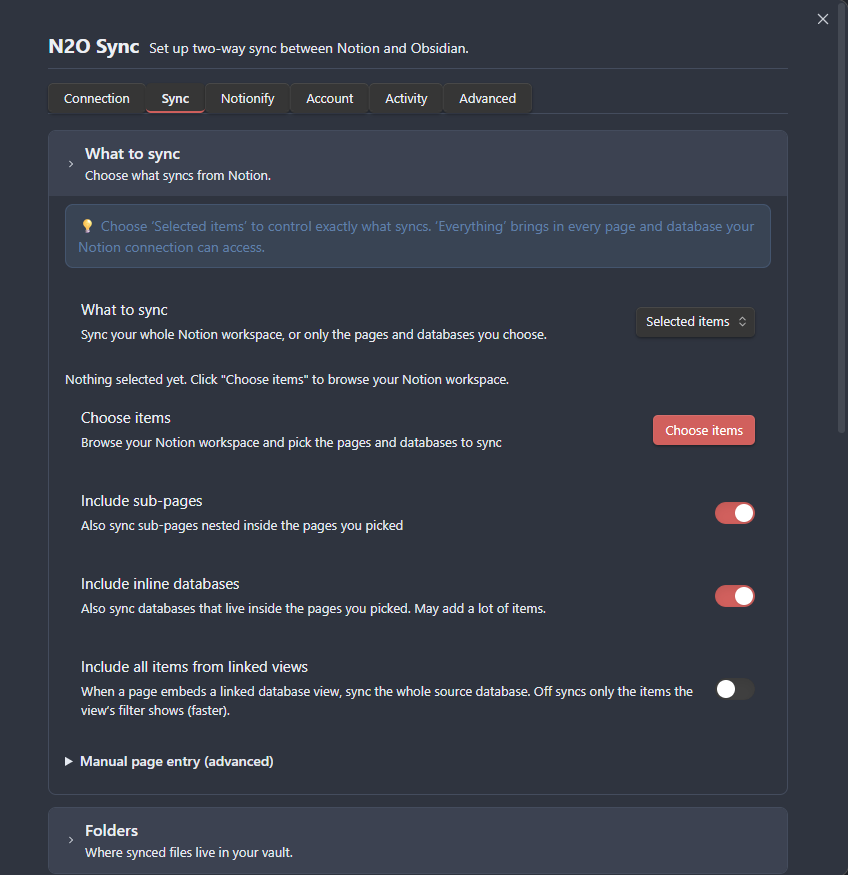
The Sync tab is a set of collapsible sections. Open the one you need.
What gets synced from Notion.
| Setting | Description |
|---|
| Pick from Notion | Everything, or selected items (the pages and databases you choose). |
| Choose items | Opens the picker to choose specific databases and pages. |
| Include sub-pages | Also sync sub-pages nested inside the pages you picked. |
| Include inline databases | Also sync databases that live inside the pages you picked. |
| Include all items from linked views | Sync the whole source database behind a linked view. Off syncs only the items the view’s filter shows. |
| Manual page entry | Paste Notion page URLs or IDs directly (advanced). |
| Filters (per database) | Sync only rows matching conditions (Status = “Done”, etc.). |
| Properties (per database) | Rename, exclude, or reformat properties in frontmatter. |
| Setting | Description |
|---|
| Synced folders | Names the folders you have and opens the manager. The vault path, the Notion destination and the direction are edited per folder there, not here. |
| Standalone Pages Folder | Put workspace-level pages in their own subfolder. |
| Standalone Folder Name | The subfolder name, _Pages by default (shown when the toggle is on). |
| Setting | Description |
|---|
| Ignored notes | Notes you told N2O to stop mentioning after they drifted outside every synced folder. |
| Setting | Description |
|---|
| Direction | Set per synced folder, not here: Both ways, Get from Notion, or Send to Notion. See the Synced Folders guide. (All modes work during the trial and on paid plans.) |
| When both sides change the same note | Ask me, Always keep Notion’s version, Always keep Obsidian’s version, or Always keep the newest edit. |
| Keep a backup of the discarded version | Save a <note>.conflict-<timestamp>.md note with the version that wasn’t kept, so nothing is lost. |
| Smart merge | Automatically combine changes that don’t overlap, so edits on both sides are kept. |
| Delete local notes removed from Notion | Delete the matching vault note when its Notion page is deleted. |
| Setting | Description |
|---|
| Download Media | Download images, files, and videos into _files/ folders. |
| Generate Cover Thumbnails | Smaller cover versions for faster card views. |
| Auto-organize media | Move dropped media into the page’s _files/ folder after sync. |
| File Property Images | How file-property images appear: frontmatter only, inline, or hidden. |
| Setting | Description |
|---|
| Bases for Databases | Generate native .base views (needs Obsidian Bases, a core plugin, 1.9+). |
| Default View Type | Table, cards, or list - used when the Notion default can’t be detected. |
| Include Formulas | Convert Notion formulas to Bases formula syntax. |
| Push property renames to Notion | Experimental - sync property renames back to Notion. |
| Canvas for Databases | Generate a .canvas graph of database items (off by default). |
See Databases for how this maps to your vault.
| Setting | Description |
|---|
| Custom Templates (Pro) | Auto-format database items; one template per database under _templates/n2o/. |
| Setting | Description |
|---|
| Enable Create New Pages | Push brand-new Obsidian files to Notion as pages. |
| Parent Page | The Notion page where new standalone pages are created. |
| Source Folder | Push new files from the whole sync folder or a chosen subfolder. |
| Setting | Description |
|---|
| Pages synced at once | Pages synced in parallel (1-10). Higher is faster but closer to Notion’s rate limit. |
| Full re-scan interval | Hours between full workspace scans for new and deleted pages (1-168). |
| Setting | Description |
|---|
| Known Notion pages | Refresh the list of accessible Notion pages, or clear the local cache. |
Automation has its own tab. It is not a section of the Sync tab. The tab holds
two groups, Get changes from Notion and Send my edits to Notion, plus a
background check.
| Setting | Description |
|---|
| Get changes automatically (Pro) | Bring Notion changes into your vault on their own (Notion to Obsidian). |
| Check frequency | How often N2O checks Notion while you are active, 60 to 300 seconds. Shown when the toggle above is on. |
| Full re-sync every | Minutes between full re-syncs that also find new pages and deletions, 5 to 60. Shown when the toggle above is on. |
| Send edits automatically (Pro) | Send your edits back to Notion after you stop typing (Obsidian to Notion). |
| Push delay | Seconds to wait after your last keystroke before sending, 3 to 30. Shown when the toggle above is on. |
| Check pages in the background | Reads synced pages back from Notion and compares them block by block, 5 pages every 6 hours, least recently checked first. Off unless you turn it on. |
See Sync modes for how these combine.
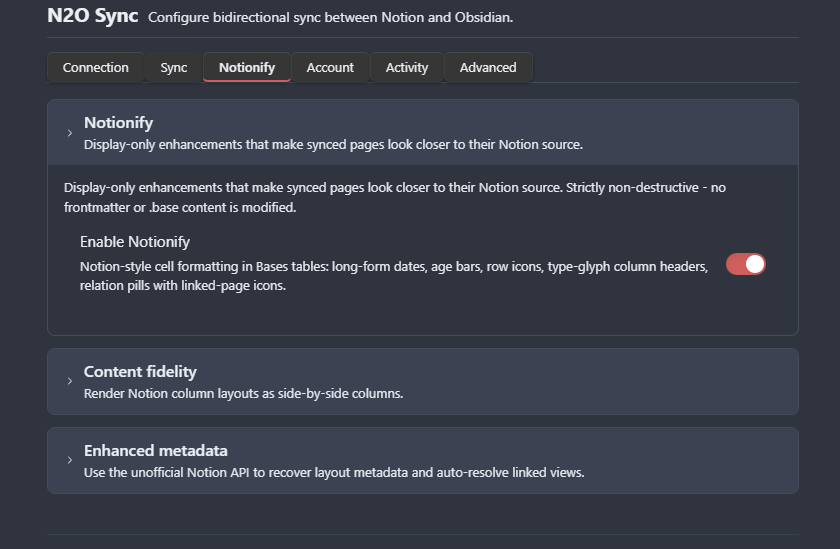
Display and fidelity enhancements that make synced content look more like Notion.
| Setting | Description |
|---|
| Enable Notionify | Notion-style cell formatting in Bases tables (dates, pills, row icons), note banners and icons, callout and multi-column styling. Display-only, non-destructive. Inline text colours and highlights come from your Notion text, so they render with this off too. |
| Multi-column layout | Render Notion column layouts as side-by-side columns. Takes effect on the next sync. |
| Enable enhanced metadata | Use Notion’s unofficial API for block layout metadata: typed embeds, image widths and column ratios. View types, linked-view resolution and view filters do not need it. |
| Session Token (token_v2) | The cookie that powers enhanced metadata. |
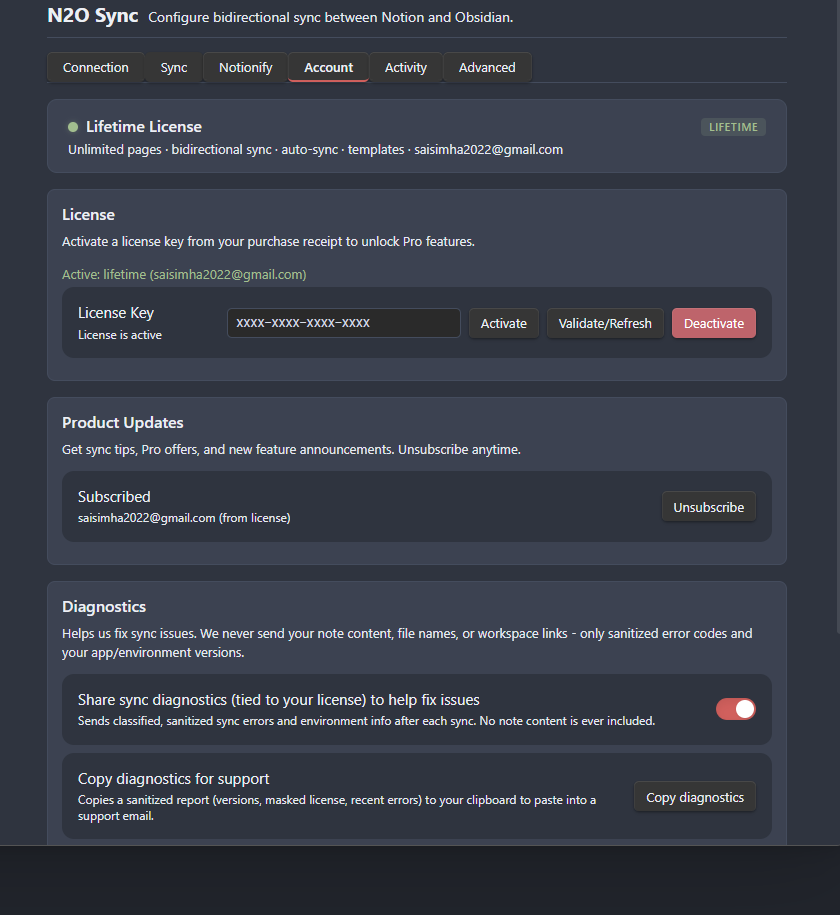
| Setting | Description |
|---|
| License Key | Activate, validate, or deactivate your Pro/Lifetime license on this device. |
| Start your trial | Starts the free 14-day trial. The button is Connect to Notion: connecting a Notion workspace is what starts the trial, and there is no email or key to enter. |
| Product Updates | Subscribe or unsubscribe from product update emails. |
| Share sync diagnostics | Sends an error code when a sync fails, so the bug gets fixed. Never your note content, file names, page titles or token. Switch it off in one click. |
| Copy diagnostics for support | Copy a sanitized diagnostics report to your clipboard. |
Read-only. Recent Activity lists items changed in the last sync; Sync
History shows past sync runs with expandable per-item details.
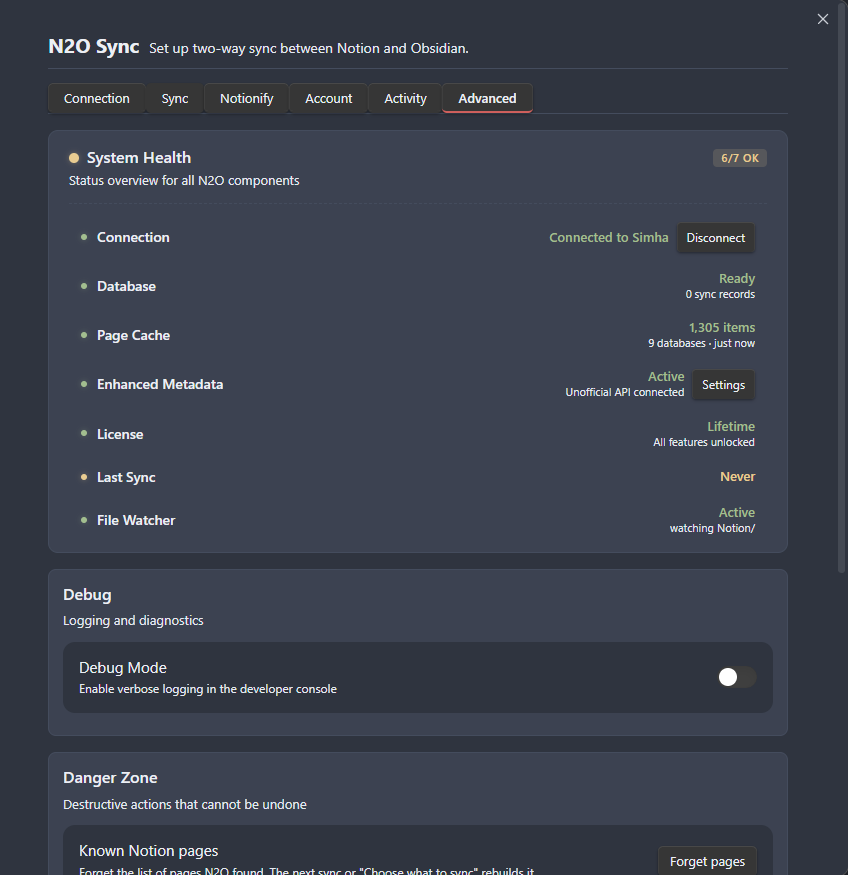
| Setting | Description |
|---|
| System Health | Status of connection, database, cache, metadata, license, last sync, and the file watcher. |
| Debug Mode | Verbose logging in the developer console. |
| Reset N2O | Clear sync state, caches, and selections. Keeps your license and connection. |
| Factory Reset | Wipe everything, including the license. Back to first-install state. |
| Free 14-day trial | Pro | Lifetime |
|---|
| Pages | 300 | Unlimited | Unlimited |
| Databases | Unlimited | Unlimited | Unlimited |
| Direction | Two-way | Two-way | Two-way |
| Automatic sync (both directions) | Yes | Yes | Yes |
| Custom templates | Yes | Yes | Yes |
| Price | Free for 14 days | $8/mo or $80/yr | $299 once |
There is no permanent free tier. After the trial, syncing is locked until you start Pro or Lifetime - your synced files stay in the vault, but no new sync runs until you upgrade. See N2O Pro for the full feature breakdown.