
Synced Folders
You keep a reading list in Notion that you only ever want to read in Obsidian, and a drafts folder you write in Obsidian and publish to Notion. Those are opposite jobs. One setting cannot serve both.
A synced folder links one folder in your vault to one place in Notion, and carries its own direction, its own selection of pages, and its own pause switch. You can have up to five. Each one is controlled on its own.
Here the vault has two: Work on Both ways, and Reading on Get from Notion. They sit next to each other on the dashboard and do not interfere.
What a folder holds
Section titled “What a folder holds”Four things. Once you have seen them, the whole feature follows.
| A folder in your vault | Where its notes live in Obsidian |
| A place in Notion | Where new pages get created |
| A selection of pages | What this folder actually syncs, ticked in the picker |
| A direction | Both ways, Get from Notion, or Send to Notion |
Everything outside your synced folders is left completely alone. N2O never touches the rest of your vault.
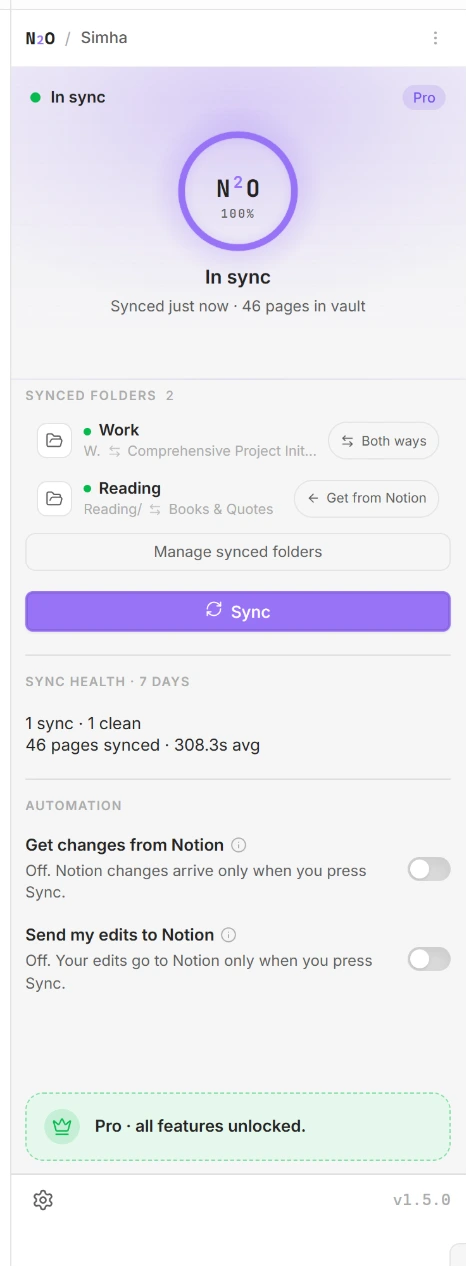
Add a synced folder, step by step
Section titled “Add a synced folder, step by step”- Open the N2O panel and press Manage synced folders.
- Press + Add a folder in the list on the left.
- Under What is linked, press Change folder and choose where its notes should live in your vault.
- Press Change destination and choose the place in Notion where new pages should be created.
- Under What syncs, press Pick from Notion… and tick the pages and databases this folder should carry.
- Under Direction, choose how content should travel.
- Press Done, then Sync.
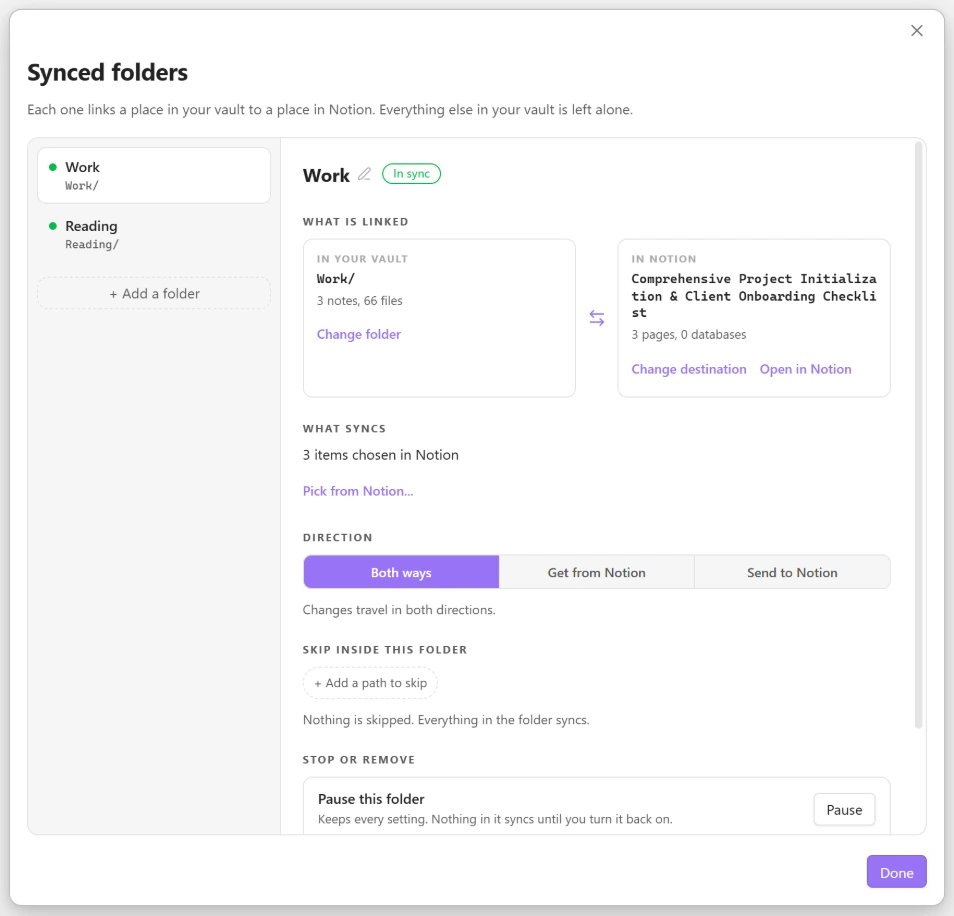
Nothing is written until you sync, so you can set a folder up and look at it before anything lands in either place.
The three modes
Section titled “The three modes”Every folder is one of these. The words are the same everywhere they appear, so what you read on the dashboard is what you read in the manager.
| Mode | What it promises |
|---|---|
| Both ways | Changes travel in both directions. |
| Get from Notion | Notion is the source. Nothing here is written back to Notion. |
| Send to Notion | This folder is the source. A sync never overwrites these notes. |
The last two are real guarantees, not labels. A folder set to Get from Notion will refuse to send your edits even if you ask it to, and the “Local changes detected” dialog will tell you which folder is stopping them rather than offering a button that quietly declines. A folder set to Send to Notion is never written over by a pull.
Because direction belongs to the folder, a Both ways folder still sends while a Get from Notion folder sitting next to it does not. They do not interfere.
Watching it work
Section titled “Watching it work”
Once a folder has synced, every note and folder in it carries a status icon in the file explorer, so you can tell at a glance whether your work is safe without opening anything.
Green means both sides match and you can stop thinking about it. Anything else tells you what is happening and whether you need to act: waiting to sync, syncing now, changed on both sides, failed, or paused.
A folder shows whichever mark inside it most needs you, so a folder of forty synced notes with one conflict shows the conflict rather than a reassuring tick.
There is a full legend.
One page belongs to one folder
Section titled “One page belongs to one folder”A Notion page can be synced by exactly one folder. If you pick a page a different folder already holds, the picker shows you which folder that is instead of accepting the tick and doing nothing.
This is deliberate. It is what keeps one Notion page mapped to one note, which is what makes your edits push back without N2O having to guess which copy you meant.
Pausing a folder
Section titled “Pausing a folder”Pause sits in the folder’s own row in the manager, next to Remove. It keeps every setting. Nothing in the folder syncs until you press Resume.
A paused folder says so on the dashboard and carries a pause icon in the file explorer, so it cannot sit forgotten while you wonder why your notes have gone stale. Pausing also never hides a real problem: a folder holding a conflict still shows the conflict.
Skipping part of a folder
Section titled “Skipping part of a folder”A folder syncs everything under it unless you say otherwise. Under Skip inside this folder, press + Add a path to skip, and notes inside that path stay put even while the folder around them syncs.
Moving, renaming and removing
Section titled “Moving, renaming and removing”| Action | What happens |
|---|---|
| Change folder | Points the synced folder at a different place in your vault. Its notes come with it and nothing is left behind. A move is a move, not a copy. |
| Rename folder | Changes the name you see. It does not touch your files. |
| Remove | Stops N2O watching it. It does not delete, move or unlink anything. |
Removing is safe on purpose. The notes are yours and they stay exactly where they are. If you add the folder back later, N2O finds the existing notes by their Notion id rather than making new ones.
Your last synced folder cannot be removed, and the manager says so when you try. An empty list does not mean nothing syncs: with no folders left N2O falls back to your whole workspace, so removing the only one would widen the sync rather than stop it. Pause it instead.
Common setups
Section titled “Common setups”Read in one place, write in another
Section titled “Read in one place, write in another”The setup this feature exists for. A Reading folder on Get from Notion for things you only consume, and a Drafts folder on Send to Notion for things you write in Obsidian and publish.
Your reading notes can never be sent up by accident, and a pull can never overwrite a draft you are in the middle of. Both automation switches can be on, because each folder keeps its own promise.
Work and personal, kept apart
Section titled “Work and personal, kept apart”Two folders on Both ways, pointing at different places in Notion. Pause one when you are not working and it stops syncing entirely, without losing its setup or its pages.
A backup of your vault in Notion
Section titled “A backup of your vault in Notion”One folder on Send to Notion. Your vault is the source, and a sync never writes back into it. This is the mode to use if you want Notion as a copy rather than as a second place you edit.
A shared wiki you only read
Section titled “A shared wiki you only read”A Get from Notion folder pointed at a team space. Colleagues edit in Notion, you get it in Obsidian, and nothing you do locally can push a change back to a page you do not own.
Questions
Section titled “Questions”Can a folder live inside another folder?
Yes, and the inner one wins. If you sync Work and also sync Work/Specs, a note under Work/Specs belongs to the Specs folder and follows its direction and its pause switch. The most specific folder always decides, so an inner folder is never swallowed by the one around it.
How many can I have?
Five. The Add button is disabled at that point and tells you why. Five is what the folder-routing test suite actually drives end to end, so it is the number I am willing to promise works. If you need more coverage than five folders give you, nest one inside another: the inner folder wins for anything under it.
What happens to a note I create myself in a synced folder?
If the folder sends to Notion, the next sync creates a matching Notion page for it. If the folder is Get from Notion, the note stays local and is never sent, which is the point of that mode.
Does removing a folder delete my Notion pages?
No. Removing a folder only stops N2O watching it. It never deletes, moves or unlinks anything, in your vault or in Notion. Same for pausing.
How do I move a page from one folder to another?
Untick it in the folder that holds it, save, then tick it in the folder you want, and sync. It is more steps than it should be, and there is an open request to make it a single action from the picker.
Do I need a paid plan?
Synced folders and all three modes work during the 14-day trial and on any paid plan. After the trial ends, syncing stops until you upgrade, and your already-synced notes stay in your vault untouched.
I renamed a synced note in Obsidian. Did I break the link?
No. A synced note is found by the notion_id in its frontmatter, not by its filename or its path. Rename it, move it, reorganise around it, and the next sync still knows which Notion page it belongs to.
If you only want one
Section titled “If you only want one”You do not have to use more than one. A single folder set to Both ways is the default and behaves the way N2O always has. Everything above is there for when one folder stops being enough.